
How to Split Large PST Files in Outlook?
Microsoft Outlook is a popular email client for both individual users and organizations to organize their emails, contacts, appointments, tasks, and other data. PST (Personal Storage Table) Files are used by Outlook to organize users mailbox data all in one location.
Your Outlook PST file size increases with growing emails, attachments, and other data in your mailbox. At a certain point, users find it hard to deal with large-sized Outlook PST file and trouble in opening, retrieving, and accessing it.
If you are facing same kinds of situations then a PST File Splitter tool will be a great help for you. It will help you to split larger Outlook PST files into small ones so that you can organize your email data.
Introduction of PST File Splitter
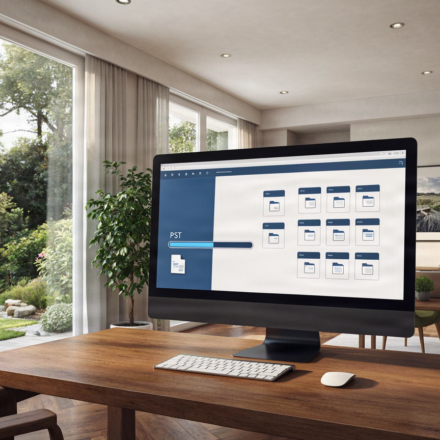
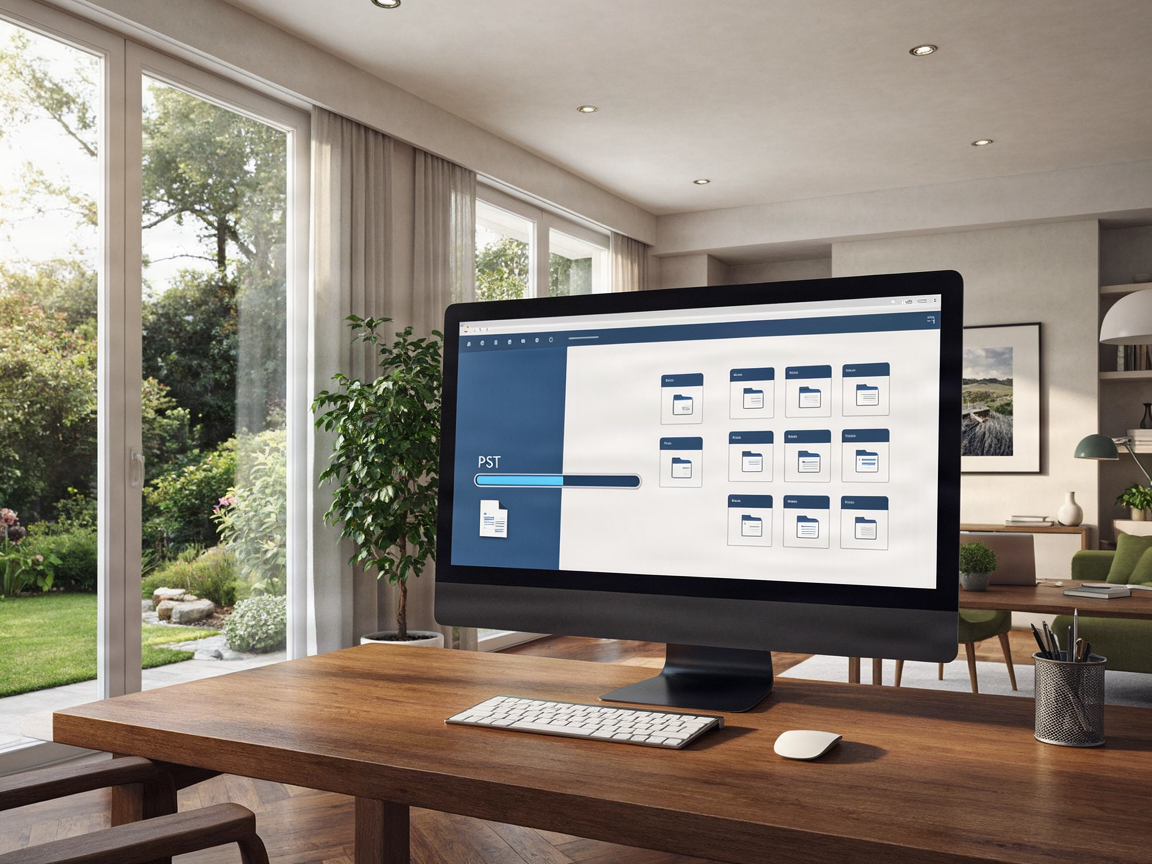
PST files into multiple small sized PST files. Instead of managing a single large data file of your mailbox, keep your Outlook data separated into PST files.
This may simplify mailbox management, in case users keep years worth of attachments and emails in a single PST file.
A suitable PST Splitter Software can offer several options of splitting depending on the feature set of the software. PST can be split by the file size, date, folder or supported parameters.
Why Do Users Need to Split Large PST Files?
There are multiple reasons which prompt users to split Outlook PST. Why do Outlook users want to split their large PST files?
- Manage Large Outlook Data Files
With growing in number of emails, the size of Outlook PST grows exponentially. It may be uncomfortable to work with that large PST file. You may want to break it into smaller files.
- Improve Email Organization
Users might decide to divide the PSTs for their email collection into as many as year, several months or projects.
- Simplify Data Backup
Backing up a very large PST file is time consuming and more disk space-consuming. With smaller PST files you can make use of much easier backup and storing system.
- Make Email Migration Easier
Those who frequently move Outlook mailbox data from machine to machine or from storage media to machine will prefer the smaller PST sizes.
- Handle Email Archives Efficiently
Businesses and professionals may retain aged email files for subsequent use. Divide a large PST file by separating archived email data into several smaller groups.
Common Methods to Split PST Files
Outlook data can be split using different tools. Outlook available splitting options are:
Split PST by Size
This approach fragments the large PST file into smaller files as per a user-defined size limit. It is suitable if the user prefers smaller sized PST files.
PST divided by Date
Users can sort mailbox data by a selected date range. For instance, the mailbox data of different years can be segmented into PST files.
Split PST by Folder
This option groups mailbox data by folders. It may be useful if you want to organize emails based on your current folder structure in Outlook.
Divide PST by Alternative Supported Criteria
Split Options: Few tools might also possess some more options for split. Please go through all the options before moving to split PST file.
Key Factors to Look for in a PST File Splitter Tool
Easy PST splitting: Select the PST splitting software wisely, which can be done easier. Some features should be kept in mind before opening the PST splitting software:
- It should have a friendly interface that a layman can operate.
- Multiple Split Options: Search for an appropriate way of splitting PST file by size, date, and folder according to your need.
- Ensure that the software supports the size of your current Outlook PST file.
- The split procedure should preferably maintain the mail items and the mailbox content.
- Attachment Management: Verify that email attachments are preserved in the converted PSTs.
- It may be easier to navigate the files if you keep the mailbox folder structure from the source.
- Ensure the application is compatible with your Windows version and the PST file to split.
How to Split a Large PST File by
Software
The actual procedure for splitting PST file is simple but the steps may be different when you use different software.
Step 1: Install the Software
Pick up a program that would fit your needs and your Windows computer with one.
Step 2. Inserting the PST File
Launch the software and navigate to choose the large Outlook PST file you want to split.
Step 3: Choose a Splitting Option
Choose the based splitting technique as per your need. Based on the attributes you have, you can split the PST file based on size, date or folder.
Step 4: Choose the End Location
Select a folder or target location where you wish to store the derived PST files.
Step 5: Carry Out The Splitting Procedure
Verify your chosen configurations and initiate the process. After completion, open the created PST files in a suitable Outlook program.
It is always advised to make a copy of the original PST file for security, prior to any splitting task.
Advantages of a Separate PST Splitter Program
Because the PST file is too big, Managing a single Outlook data file manually can be a pain. If mailbox contains many emails and their attachments, you can use PST Splitter Software to split mailbox data into smaller chunks.
Some potential benefits include:
- Enables simple handling of data file solutions of significantly larger dimensions in Outlook.
- Better organization of email archives.
- Convenient handling of smaller mailbox files.
- More manageable email backup operations.
- Improved flexibility when transferring Outlook data.
Results may vary based on the features supported by the software and the condition of the source PST file.
Who Can Benefit from PST File Splitter?
PST File Splitter may be beneficial for varied purpose.
Business Users: Users having heavy business emails might use this method to divide their mailbox into multiple files.
IT Administrators: IT staff who work with Outlook data files may use PST splitting as a way to better organize your email archive.
Office Users: Outlook frequently archives email records from users.
Home Users: Home users, with lots of personal emails with attachments saved in huge PSTs, can apply splitting software.
Conclusion
If you keep your Outlook PST files for years with lots of attachments and emails in your mailbox, then it would get difficult to handle and maintain those files. Break down large files into manageable parts.
A trusted PST File Splitter a great solution for splitting large Outlook files with the possible splitting options of the software. To break large files consider the splitting method, PST file format support, attachments and data safety.
Choosing the Perfect PST Splitter Software will enable the user to solve the issue of Outlook mailbox data management and to structure email archiving.